Introduction to Git Diff
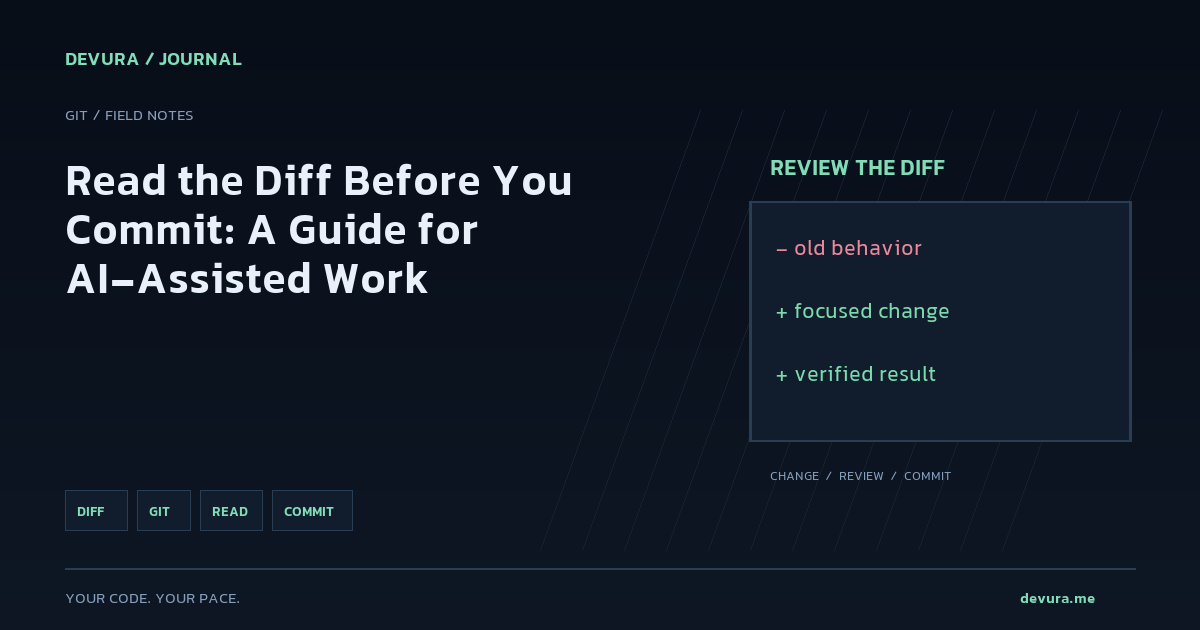
In software development, especially when working with version control systems like Git, it's crucial to review changes before committing them. Git provides a powerful tool called `git diff` that allows developers to see the differences between various stages of their project. This helps in identifying potential issues and ensures that only intended changes are committed. By regularly reviewing diffs, developers can catch bugs early, maintain code quality, and ensure that the codebase remains clean and understandable.
- Git diff compares different states of your project, such as the working directory, staging area, and commits.
- Understanding diffs is essential for maintaining code quality and catching errors early.
- Regularly reviewing diffs can prevent issues from propagating through the codebase and improve collaboration among team members.
git diffBasic Usage of Git Diff
The most common use of `git diff` is to see the changes in your working directory that are not yet staged. This helps you understand what modifications you've made and decide which ones to commit. Additionally, you can use `git diff --cached` to see changes between the staging area and the last commit, which is useful for reviewing changes that are about to be committed.
- Run `git diff` to see changes between the working directory and the staging area.
- Use `git diff --cached` to see changes between the staging area and the last commit.
- These commands provide a clear view of what will be included in the next commit, allowing you to make informed decisions.
git diff
# To see staged changes
git diff --cachedComparing Specific Files
Sometimes, you might want to focus on specific files rather than the entire project. Git diff allows you to specify paths to compare only those files. This is particularly useful when you are working on a large codebase and need to review changes in specific modules or components.
- Use `git diff <file>` to see changes in a specific file.
- You can also compare multiple files by listing them, which helps in reviewing related changes together.
git diff src/main.py
# Compare multiple files
git diff src/main.py src/utils.pyUsing Git Diff for Merges
During a merge, it's important to review the changes introduced by each branch. Git diff can help identify conflicts and understand the changes being merged. This is crucial for resolving merge conflicts and ensuring that the merged code works as expected.
- Use `git diff <commit> <commit>` to see changes between two commits.
- For merge conflicts, `git diff` shows the conflicting changes from each branch, helping you understand the differences and resolve them.
git diff HEAD~1 HEAD
# During a merge conflict
git diff --merge-base A BAdvanced Options for Git Diff
Git diff offers several options to customize the output and make it more useful for different scenarios. These options allow you to tailor the diff output to your needs, whether you need a high-level overview or detailed line-by-line changes.
- Use `-p` or `--patch` to generate a patch file, which is useful for sharing changes with others.
- Use `-U<n>` to specify the number of context lines, which can help you understand the surrounding code better.
- Use `--stat` to get a summary of changes, providing a quick overview of what has been modified.
git diff -p
# With 5 lines of context
git diff -U5
# Summary of changes
git diff --statWorked Example: Reviewing Changes Before Committing
Let's walk through a practical example of using `git diff` to review changes before committing. Suppose you have made some changes to a Python script and want to ensure everything looks correct before staging and committing the changes.
- First, make some changes to `app.py` and run `git diff` to see the changes in the working directory.
- Stage the changes using `git add app.py` and then run `git diff --cached` to review the staged changes.
- If everything looks good, commit the changes using `git commit -m 'Update app.py'`.
# Make changes to app.py
# Run git diff to see changes
$ git diff
# Stage the changes
$ git add app.py
# Review staged changes
$ git diff --cached
# Commit the changes
$ git commit -m 'Update app.py'Verification Checklist
Before committing, ensure you've reviewed all changes using `git diff`. This checklist helps you verify that your commit is ready and that you haven't missed any important changes or introduced errors.
- Run `git diff` to review changes in the working directory.
- Use `git diff --cached` to review staged changes.
- Check specific files with `git diff <file>` if needed.
- Review merge changes with `git diff <commit> <commit>` during merges.
- Use advanced options like `-p`, `-U<n>`, and `--stat` for detailed reviews.
- Ensure that all changes are intentional and that the code compiles and runs correctly.
Sources & methodology
These references were selected by the editorial team. Verify examples against current documentation and your project before using them.
- Git - git-diff DocumentationAdded: 2026-11-21
- Git - git-status DocumentationAdded: 2026-11-21
Turn the idea into reviewable work.
Bring your models, editor, terminal and browser together in Devura.
Get Devura