Understanding GitHub Copilot's Capabilities
GitHub Copilot is an AI coding assistant designed to enhance your productivity by writing code faster and with fewer errors. It excels in writing tests, handling repetitive code, debugging, and generating regular expressions. However, it's not meant to replace your expertise or handle non-coding tasks. By leveraging Copilot's strengths, you can focus more on problem-solving and collaboration.
- Use Copilot for writing tests and repetitive code.
- Leverage Copilot for debugging and correcting syntax.
- Ask Copilot to explain and comment on your code.
- Utilize Copilot for generating regular expressions.
Choosing the Right Tool for the Job
GitHub Copilot offers both inline suggestions and Copilot Chat, each suited for different tasks. Inline suggestions are ideal for completing code snippets and generating repetitive code, while Copilot Chat is better for answering questions and generating larger sections of code. Understanding when to use each tool can significantly enhance your workflow.
- Use inline suggestions for completing code snippets and generating repetitive code.
- Employ Copilot Chat for answering questions and generating large sections of code.
Crafting Effective Prompts
Effective prompt engineering is crucial for getting accurate and useful responses from Copilot. Start with a broad description of your task, followed by specific requirements. Provide examples to clarify your expectations and break down complex tasks into simpler ones. This method ensures that Copilot understands exactly what you need and can provide targeted assistance.
- Start with a broad description of the task.
- List specific requirements clearly.
- Provide examples of inputs, outputs, and implementations.
- Break down complex tasks into simpler ones.
Write a Python function to calculate the factorial of a number.
Input: 5
Output: 120Reviewing and Validating Copilot's Suggestions
Always review and validate the code generated by Copilot. Ensure it meets your requirements and is secure. Use automated tools like linters and code scanners to verify the code's quality and functionality. This step is essential to catch any potential issues early in the development process.
- Understand the suggested code before implementation.
- Review the code for functionality, security, readability, and maintainability.
- Use automated tools like linters and code scanners for validation.
Iterating and Refining Your Prompts
If Copilot's initial response doesn't meet your needs, refine your prompt and try again. You can modify the existing suggestion or start over with a new prompt. Iteration is key to achieving the desired outcome. By continuously refining your prompts, you can guide Copilot to provide more accurate and useful suggestions.
- Refine your prompt based on Copilot's response.
- Modify the existing suggestion or start over with a new prompt.
- Iterate until you achieve the desired outcome.
A Worked Example: Implementing a Simple Calculator
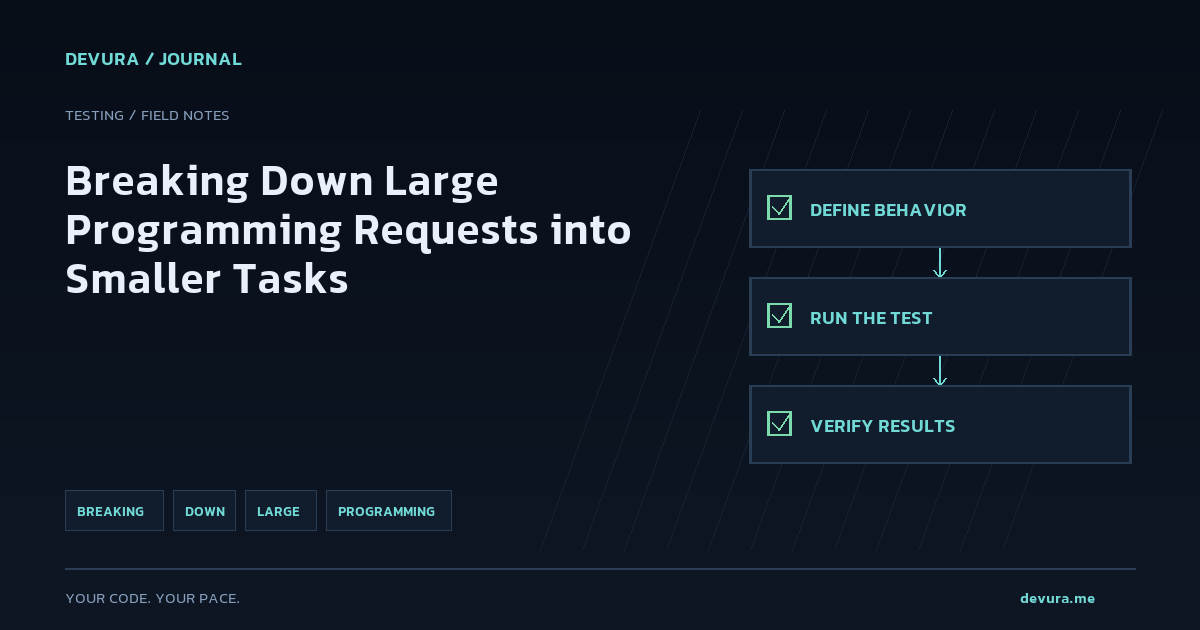
Let's walk through a practical example of breaking down a large task into smaller, manageable parts using GitHub Copilot. Suppose you need to implement a simple calculator that can perform basic arithmetic operations like addition, subtraction, multiplication, and division. Here's how you can approach this task step-by-step.
- Define the overall goal: Implement a simple calculator with basic arithmetic operations.
- Break down the task into smaller sub-tasks:
- Define the user interface.
- Implement addition functionality.
- Implement subtraction functionality.
- Implement multiplication functionality.
- Implement division functionality.
- Add error handling for invalid inputs.
- Use Copilot to generate code for each sub-task.
- Review and validate each part of the code.
- Test the entire calculator to ensure all functionalities work as expected.
# Define the user interface
def display_menu():
    print("Simple Calculator")
    print("1. Add")
    print("2. Subtract")
    print("3. Multiply")
    print("4. Divide")
    print("5. Exit")

# Implement addition functionality
def add(x, y):
    return x + y

# Implement subtraction functionality
def subtract(x, y):
    return x - y

# Implement multiplication functionality
def multiply(x, y):
    return x * y

# Implement division functionality
def divide(x, y):
    if y == 0:
        return "Error: Division by zero"
    return x / y

# Main loop
def main():
    while True:
        display_menu()
        choice = input("Enter choice (1/2/3/4/5): ")
        if choice == '5':
            print("Exiting the calculator.")
            break
        if choice in ('1', '2', '3', '4'):
            num1 = float(input("Enter first number: "))
            num2 = float(input("Enter second number: "))
            if choice == '1':
                print(f"Result: {add(num1, num2)}")
            elif choice == '2':
                print(f"Result: {subtract(num1, num2)}")
            elif choice == '3':
                print(f"Result: {multiply(num1, num2)}")
            elif choice == '4':
                print(f"Result: {divide(num1, num2)}")
        else:
            print("Invalid input")

if __name__ == "__main__":
main()Verification Checklist
To ensure that your implementation is correct and meets all requirements, follow this verification checklist.
- The calculator displays a menu with options for addition, subtraction, multiplication, and division.
- Each arithmetic operation is correctly implemented and returns the expected result.
- The calculator handles invalid inputs gracefully, such as division by zero or invalid menu choices.
- The code is well-documented and follows best practices for readability and maintainability.
- Automated tests are written and pass for all functionalities.
Sources & methodology
These references were selected by the editorial team. Verify examples against current documentation and your project before using them.
- Best practices for using GitHub Copilot - GitHub DocsAdded: 2026-11-18
- Prompt engineering for GitHub Copilot - GitHub DocsAdded: 2026-11-18
Turn the idea into reviewable work.
Bring your models, editor, terminal and browser together in Devura.
Get Devura